
.svg)
How to create a report template in Word
Whether you're a construction worker, roofer, engineer, or contractor, more than likely, you've
needed to create a report template in Word. They are helpful for documenting images that you've
taken out in the field, or showing customers work that you've completed. It helps you showcase your
work in a professional manner.
In this article, we are going to look at how to create a report template in Word. This will be an
easy, step by step process, so let's get started.
Cover page
Your first step in how to create a report template in Word is to open Word up. Once you have
everything opened up, create a new file.
You should now be looking at a blank page. From here, the first thing you'll want to do is create a
cover page.
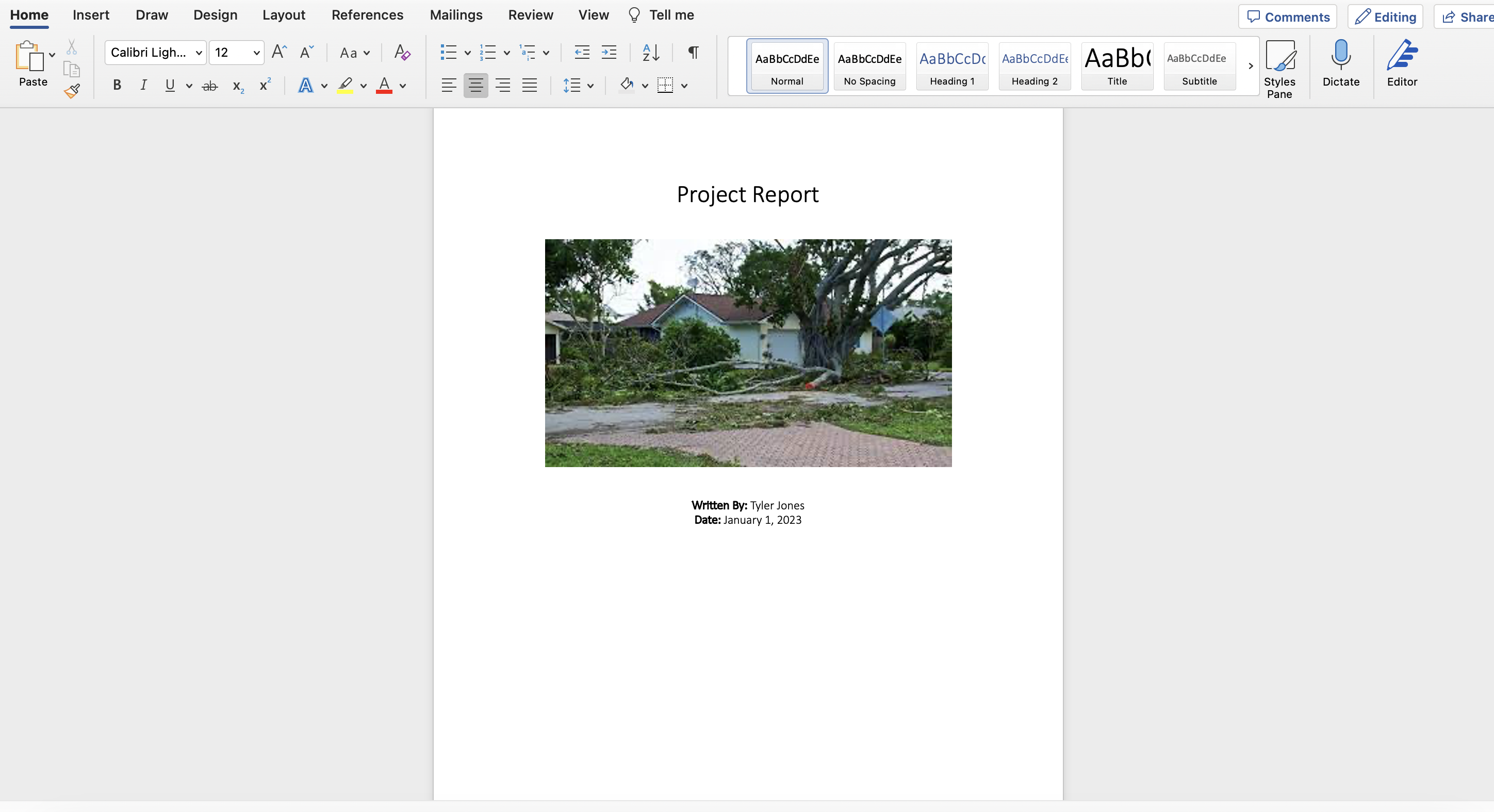
This cover page will have details such as the title of your project, your name, the date the report
was written, the location of the project, and your company's logo. You'll want to center all this
information down the middle of the page so everything looks neat and professional. When considering
how to create a report template in Word, keep in mind that these reports can be used over and over
again, so you want to keep them as professional as possible.
Another pro tip: Make the title of your report text size 30, and the rest of your details text size
17. Also, make your name bold. This will make your photo report template in Word look nice and neat.
Feel free to put your company or school logo at the top of the page.
Another good idea is to add numbers to the footer of each page, helping the reader understand where
they are in the report. In the header of your report, you can add your name or company's name.
Once you have the cover page created, the next step in how to create a report template in Word is
the actual content and key details. Let's get into it.
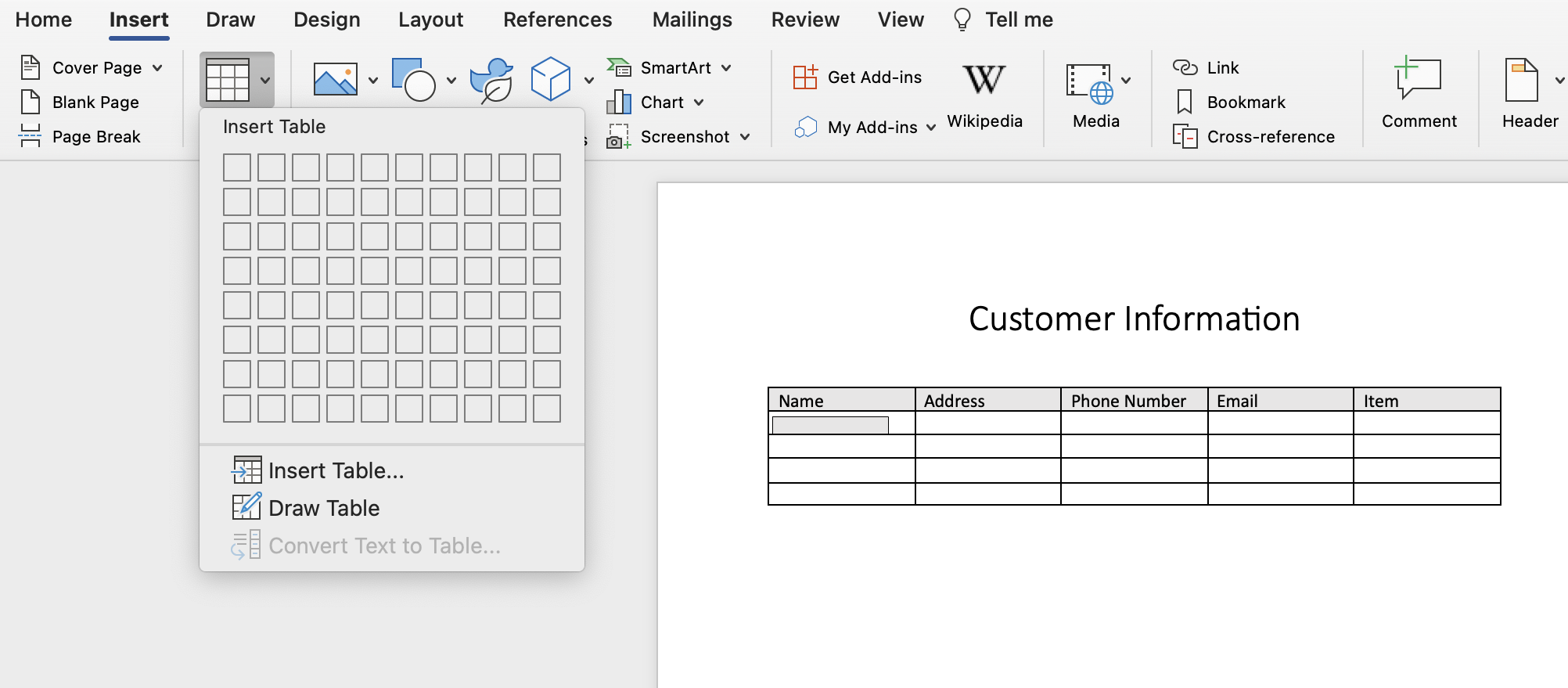
We have a tool that we've created to help you create job report templates easily, especially if trying to figure out out how to create a report template in Word gets complicated. Click the link below to learn more.
Initial details
Your next step in how to create a report template in Word, once you have your cover page created, is
to write an introduction of what you'll be showcasing.
This can be information such as the work you did for the customer, the whole process from beginning
to end, what tools you used, which team members were involved, or explaning the customers request
and how you were able to fulfill it.
When learning how to create a report template in Word, keep your introduction simple and clear to
the one who will be reading it.
Introductions are good to add to your reports, becuase instead of just getting right into the photo
documentation, you are giving a brief overview of the work that was done.
Create reports
The actual report
Now that you have your introduction created, you can now move on to the actual report portion when
looking at how to create a report template in Word.
Here is where the main body of your report will be. When writing this section, explain in detail
what you did. When you were trying to solve the issue, what did you have to do? What kind of
research did you have to go and look up? Did you need to ask the customer any additional questions?
These are all great points that you can include.
If necessary, when looking at how to create a report template in Word, you can add outside facts or
information that you think could be useful to support your case. Of course, make sure to cite any outside information that you choose to use.
Also, remember to seperate these paragraphs with headings, so it's easy for the reader to clearly
read through the report.
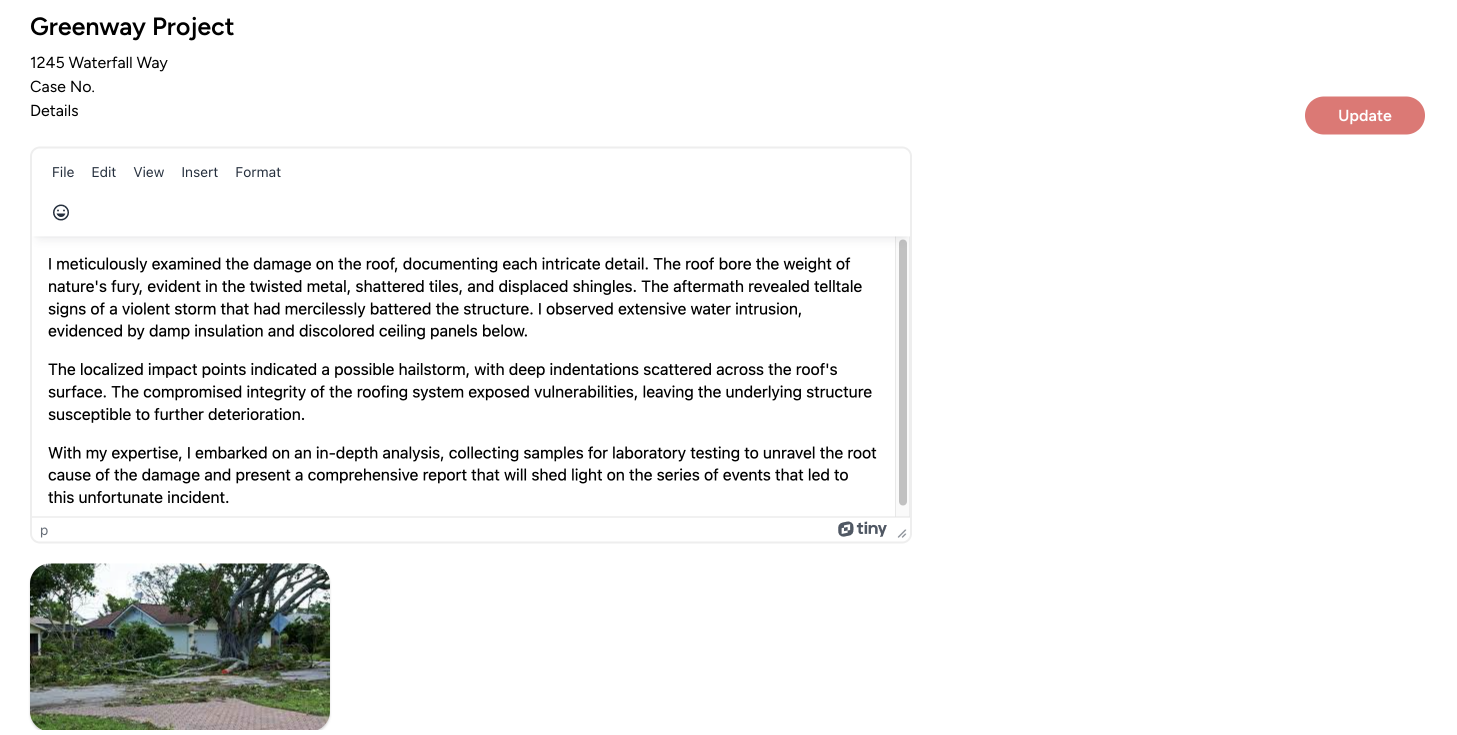
If your report includes photos, or you're writing a summary about what you found and need to include
photos, try setting it up like this:
1: Place your initial image. Make it as wide as possible so the reader can see the key details.
2. Under that image, write key details about what you saw, whether it was damage, a leak, or
something else.
3. Create headings for each section. For instance, you could say: "Front roof", or "Door area", with
the corresponding images under that section.
By keeping the main body of your report simple, and following these steps, you'll get a better understanding of how to create a report template in Word.
Conclusion
Now that you've finished up your photo report template in Word, the last thing in how to create a
report template in Word to do is write the conclusion.
You can keep this to just a couple sentences, saying once again what the report was about, and the
work that you did. It could also be a good idea to thank the customer or reader for their time, and
the opportunity to work with them.
The good thing about a template like this, is that once you've created it once, you can use it over
and over again to create your templates, and just change out the image and captions every time if
you like.
How to create a report template in Word
If you're looking for how to create a report template in Word, you'll want to check out our tool Kybo.
It's perfect for construction companies, engineering firms , roofers, contractors, and any business
owner
who is
looking for how to create a report template in Word, but realizes that Word might be too difficult
to create these reports. Or, you need to easily share the reports or photos with others. Maybe you
would like to send the report as a link.
If you're looking for how to create a report template in Word, but need an easy and simple solution,
check us out.